


How Can We Help?
Expenses Module User Guide
Web Page – Where to find it
ALL USERS – https://expenses.slopitch.org
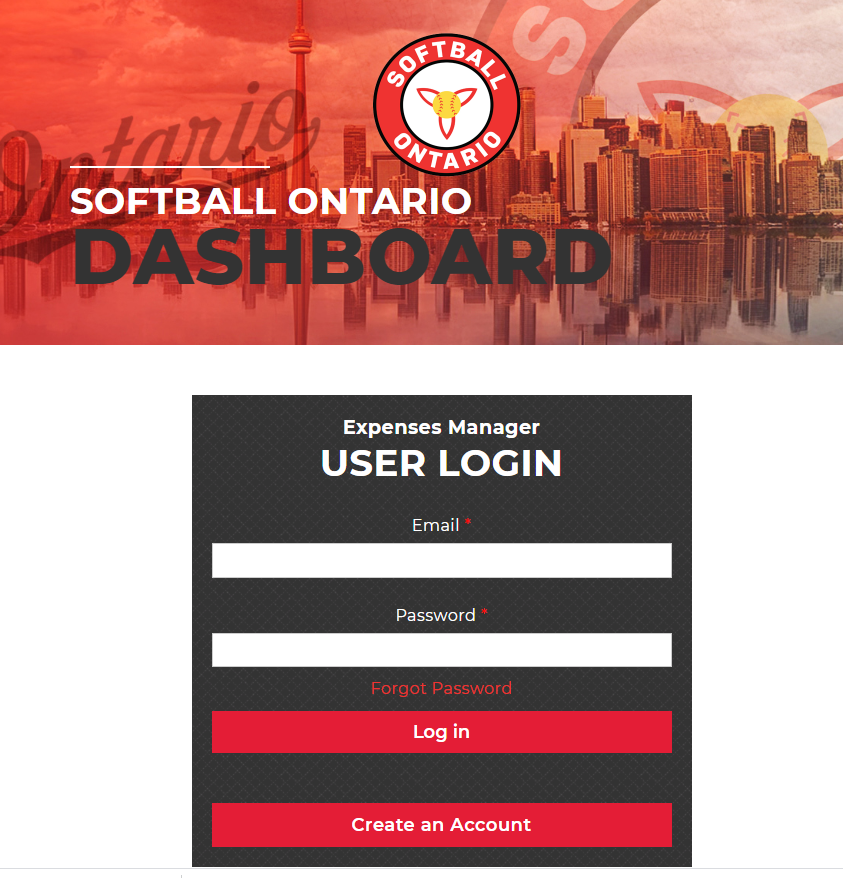
Create New Profile:
First time users of the Softball Ontario Expenses module will need to create a profile to be able to submit expense reports.
To create a new profile, click on the “Create an Account” button at the bottom of the login Screen.
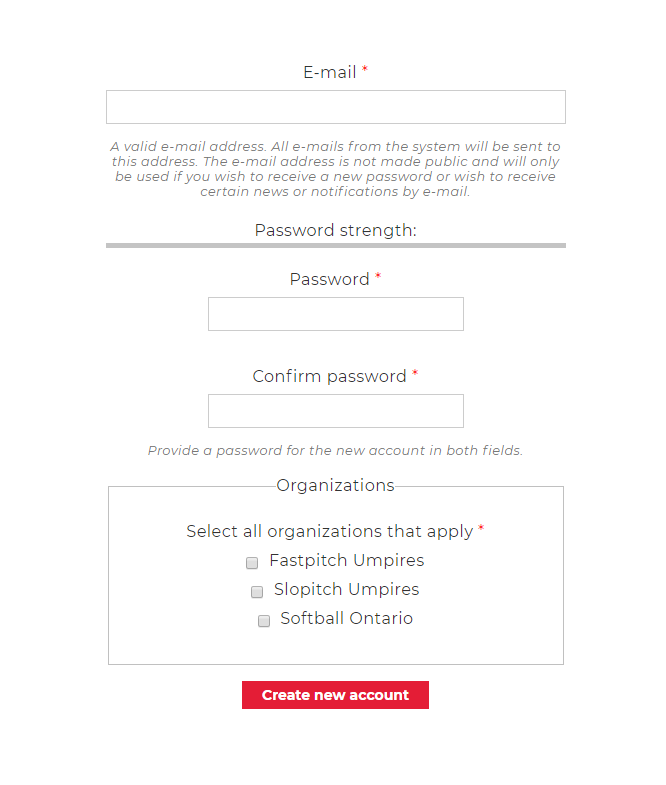
Enter in your preferred email address and password.
REMEMBER to select any of the organizations you could potentially have to submit an expense report for.
Click on the “Create new account” button to finish the process. You will then be forwarded to your dashboard where you can start to submit an expense claim.
Logging in:
Enter in the Username (e-mail) and password that you signed up with. If you have forgotten your password, you can recover it by clicking on the “Forgot Password” link.
Note: All users will be logged out after 30 minutes of inactivity. Users can also log out by clicking the “Logout” button on the bottom-left corner of each page.
Submitting an expense claim:
All users will have a button labeled Submit New Expense Claim
for every association they belong to / signed up with. Click the appropriate
button for the Expense Claim Form page.
Note: Not every user will see all available fields as each category is
controlled by the association administrator.
Personal Details
Enter in your name, the e-mail field for the expense form will autofill with the e-mail associated with your user account. This can be changed here if needed
Event Details
Event details will vary based on what was set up by the group administrator. Select your event type, the date and location. If the event type is missing from the list, you can manually enter it in under the “Specify if ‘Other’ or ‘Meeting’” text box.
Travel
If travelling by automobile, enter the number of km travelled for the event and if any individuals came with you. The amount field will automatically calculate based on the association mileage allowance. If there was additional travel by Train, Airplane or Taxi, enter the expense into the area provided.
Accommodations
Enter in the name of the Hotel and the amount of the expense.
Meal Allowance
Meal allowance values are determined by the administrator, in this area just enter in the number of meals that fell into each category. The Meal Allowance Total will automatically calculate.
Telephone
Enter in the amount claimed.
Instructor / Evaluator
Enter in the amount claimed.
Other Expense
If an expense is not covered by any of the above categories it can be entered here. Enter in the description of the expanse and the amount claimed.
Total Expenses
Each amount field takes a numeric value and will automatically calculate it into the expense form “Total” field (this field cannot be edited)
Print Expense Form
Users can print their expense claim before submitting by clicking “Click to print a copy before you submit your claim” above the “Submit Expense Form” button.
Submit Expense Form
To submit your expense report, click the but red “Submit Expense Form” at the bottom of the page. Upon submitting the expense claim, both the user and associated Expense Approvers will receive an email notification that an expense claim has been submitted
An email will also be sent to the Submitter once an expense claim has been approved or rejected.
Note: Any fields labeled with a red star (*) are mandatory