


How Can We Help?
Slo-Pitch Ontario League Management Workflow
1.1 Purpose of this document
The Purpose of this document is to record the expected workflow and business case rules around the creation, management and season over season roll over of leagues withing the SPO MRS.
1.2 What is a League?
A league is a collection of teams put together for the purpose of playing slo-pitch. Teams are registered under leagues to ensure that all players are covered under the SPO insurance plan.
1.3 League Presidents
The individuals who manage these leagues in the MRS are called League Presidents and they are responsible for adding the teams to their league and paying the league fees as described in this document.
1.4 Seasons
A season generally starts early Jan and runs for one full year. Members of SPO are required to become a member during this time for insurance and access to the SPO tournament structure and Provincial Championships. Members are required to become members again every Season.
2. Creation of New Leagues (End Users / League Presidents)
Assumptions: User has already created an account in the SPO MRS and has paid their individual membership fee.
2.1 Create New League
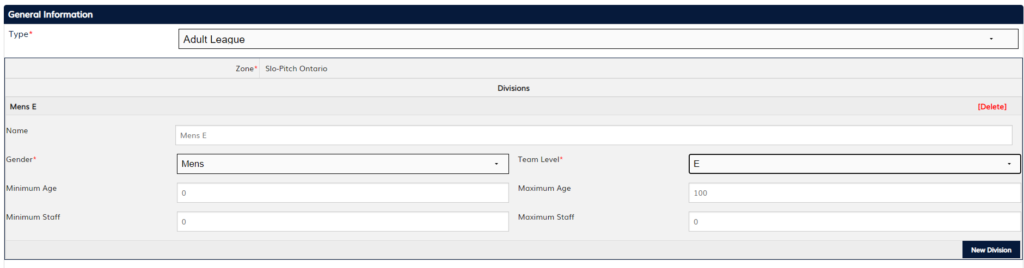
On the main menu under Leagues there will be an option for “Create League”. SPO has options for two different types of Leagues, Youth and Adult. The majority of all SPO leagues are Adult. Once the Type is selected, the rest of the create league page will appear.
2.1.1 Divisions
All Leagues will need at least one Division. Click on the “New Division” Button.
- Name: This field if not filled in by the user, by default will display the Selected Gender and team Level. If the user decides to enter in a unique name for this division, it can be entered here.
- Gender: Select between Coed, Men’s, or Women’s
- Team Level: Drop down single select field
- Minimum Age: Numeric Field – Sets the minimum participation age level (generally for Masters Divisions)
- Maximum Age: Numeric Field – Sets the Maximum participation age level (generally for youth divisions)
- Minimum and Maximum Staff Fields – Not currently used as part of the SPO MRS.
If more than one division needs to be added to the league, the user can select “New Division” as many times as needed.
2.1.2 League Name
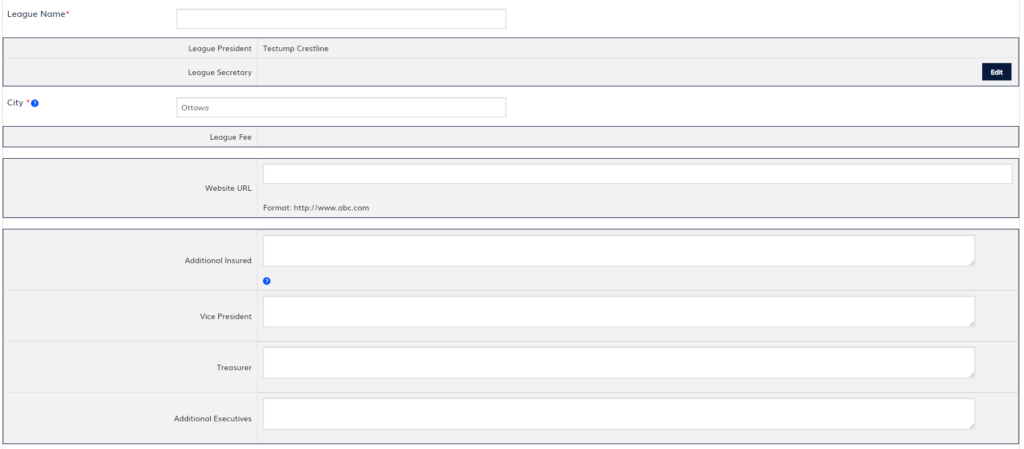
The League name field is an open text field where the user can enter in their league name. This name will be used as part of all MRS Searches
2.1.3 League Contacts
The League President field will be auto populated with the name of the user who’s creating the league. That user can assign another MRS user as the League Secretary by selecting “Edit” and searching for the appropriate user and adding them. The user who gets assigned as the League Secretary will have full admin rights to manage the league when they log in.
2.1.4 City
The city field here is a drop down of preset cities that were defined by SPO. If a user cant find their city on the list, they are supposed to select the “closest” City to their location. This was designed to help users find leagues, tournaments based on most “Known” areas of Ontario.
2.1.5 League fee
During league creation this field will be read only.
2.1.6 Website URL
Enter in the league URL if the league has a website.
2.1.7 Additional Insured, Vice President, Treasurer, Additional Executives.
These fields are open text and allows the user to enter in any members of their league who are not MRS users for insurance purposes.
2.1.8 Team Packages Address:
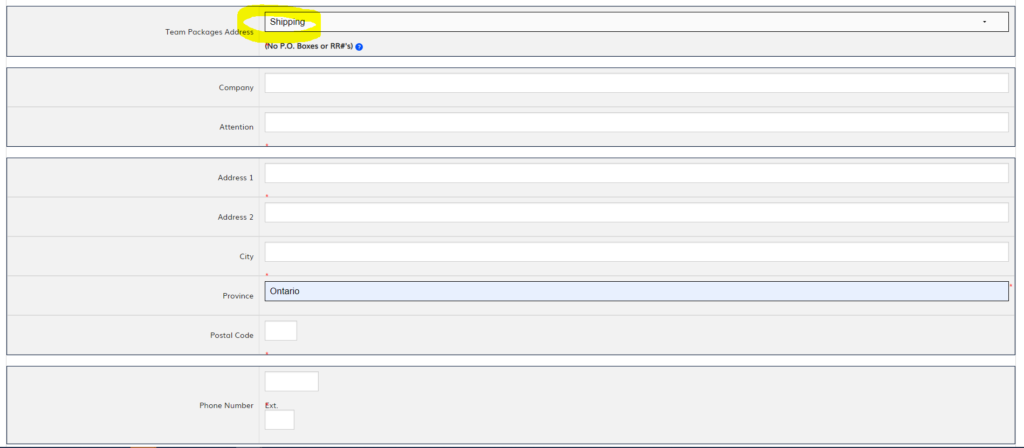
SPO as part of their membership sends out membership bundles based on the number of teams that are in any given league. This field is a drop down to select where these packages will get sent to. When Selecting the League President or League Secretary, the address for each of these users will be based on their MRS Profile. If the user selects Shipping, several additional fields will appear including:
- Company
- Attention:
- Address 1, Address2
- City
- Province
- Postal Code
- Phone Number
2.1.9 Roster Validation Rules
The Roster Validation Rules are set by the user for the league and control the teams that can participate in the league. Note: Most SPO leagues do not use these settings.
- Minimum Players: Teams must have at least this number of players to be a team in this league
- Maximum Players: Teams cannot have more than this number of players to be a team in the league
- Enforce Team Validation: (On / Off) If on, the above rules are enforced. If off they are not (Typically)
2.1.10 Roster Lock
The Roster Lock date is used by League Presidents to make sure teams in their leagues cannot add any new players to their roster after the date. The roster lock date of the league must be less than the Master Roster lock date which is set by SPO Admin. (the date when all SPO teams can no longer add players to their rosters)
2.1.11 Submit For Processing
Once all the data on the Create League page has been filled in the user will need to select the “Submit for Processing” at the bottom of the page.
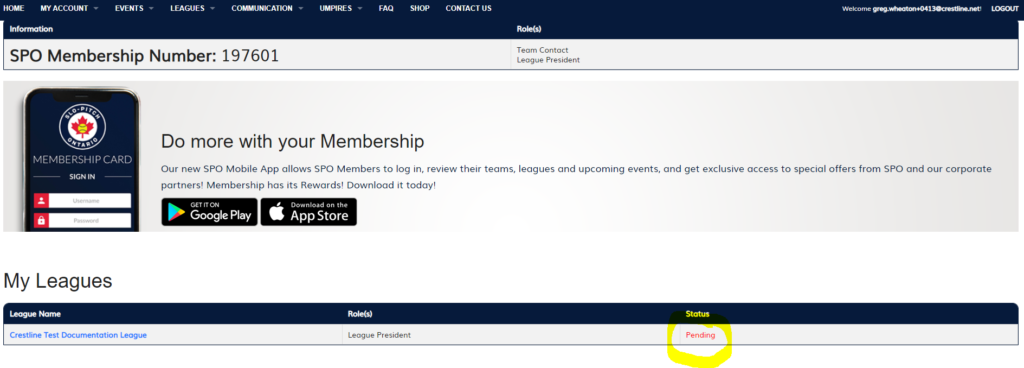
Once submit has been pressed a success message will appear at the top of the screen saying “The league has been successfully created. The League President will receive an email notification once it has been approved by SPO.” On the Users Homepage / Dashboard the League should show up with a Pending Status.
2.1.12 Submit Payment
Any time after the league has been created and is a Pending or Sanctioned state, the user can click on their league to bring up the league details page. There they can edit their league if needed however they will need to click on Submit Payment so they can start adding and registering teams.
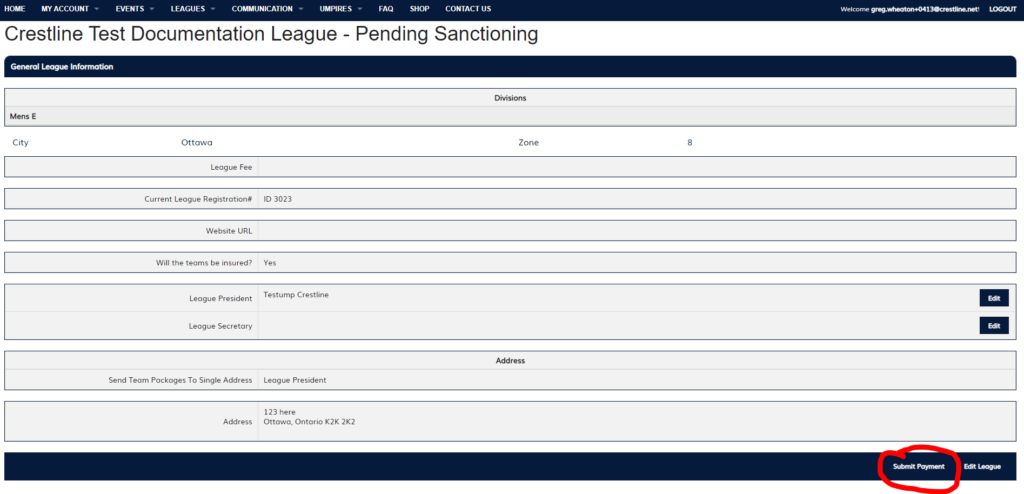
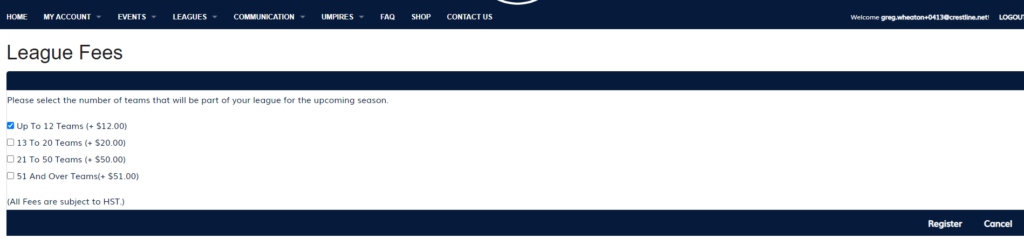
Clicking on the Submit Payment button will bring up a screen where the user will need select and make a payment based on the anticipated size of the league.
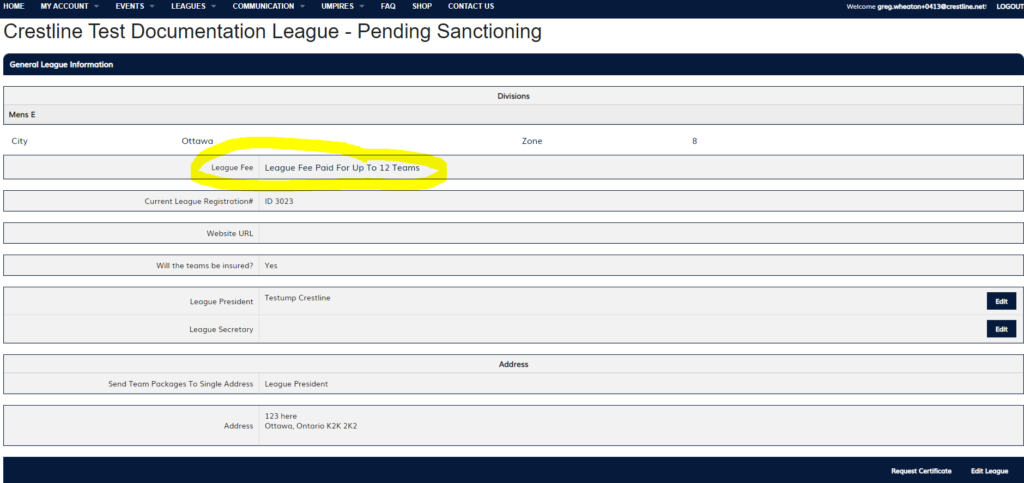
Once the payment has been completed on the league details page under league fee it will display whatever option was selected.
2.1.13 Managing Teams
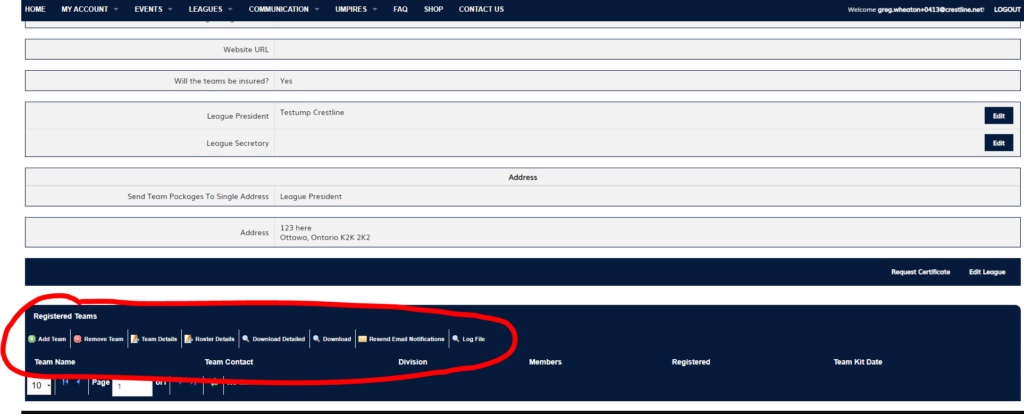
Once the team fees have been paid on the league details page at the bottom there will be options around teams.
- Add Team – Allows user to search and add teams that will be participating in the league
- Remove Team – Removes teams in the league
- Team Details – Displays the information on a team including name, team contact etc.
- Roster Details – Displays the high-level details of the players on that team
- Download Detailed – Downloads a PDF document of the Full Official SPO Roster form for all teams
- Download – Downloads a listing of all the team names and teams contacts in the league
- Resend email Notifications – Resends the “Registration” email for any members who have not signed up with their annual membership yet (Inactive Status accounts only)
- Log File – Shows the history of when teams were added and removed
2.1.14 Adding Teams
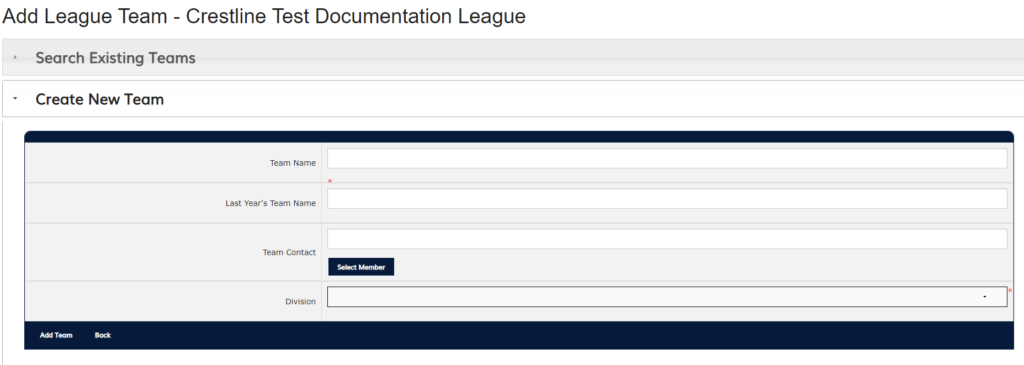
Clicking the add team button will bring up a new menu that will allow users to search the existing MRS database for teams. Teams can be searched by name, Team ID or Last years Name. Note: There are many duplicate names in the MRS (Sons of Pitches for example has 35 teams with that name), using team ID is a much better method of adding teams to ensure the proper team
If the team doesn’t already exist in the MRS the contact can create a new one by selecting the “Create New Team” Option. The user will need to fill in the “team name” – Mandatory and can add last years team name as an option. They will also need to select a team contact for the team. Note: This contact must be a SPO active member to be selected. They will also need to select the team division which will be drop down of all the divisions associated with that League.
2.1.15 Complete Team Registration
Once the league President has added all of the teams to their league, they will need to officially register the teams for the upcoming season. Note this process ensures they are covered from an insurance standpoint.
On the League details page there will be a new option on the Edit League bar called “Register Teams”. Clicking on that button will list all the teams connected with the league and ask for verification. Hitting the Continue button will register the teams for the current SPO season as part of that league. This process provides the teams with the “Adult insured team status”.
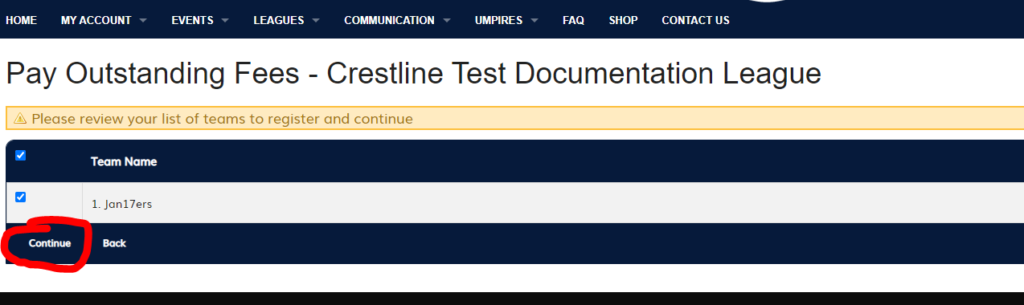
Once registered on the league teams view the team will have a checkmark in the table under “Registered”.
This process can be completed several times if teams join the league late.
3. League Management (Administrators)
All leagues will have one of four statuses’
- Pending – New or returning league that has not been sanctioned for the current season
- Sanctioned – Approved league for the current season
- Rejected – A league that was rejected by admin and is not sanctioned for the current season Note: they can often be asked to make change then re-apply
- Migrating – A league from a previous season where the League President has not Migrated it to the current season as of yet. (See Section 4)
3.1 Sanctioning Leagues:
When logged in as SPOADMIN using the Manage / League menu item it will display all league that are associated with any given season (default is current season). To find the leagues that need to be sanctioned for the current season you can search on the Status of Pending.
To sanction a league simply highlight the league and select the Sanction League button.
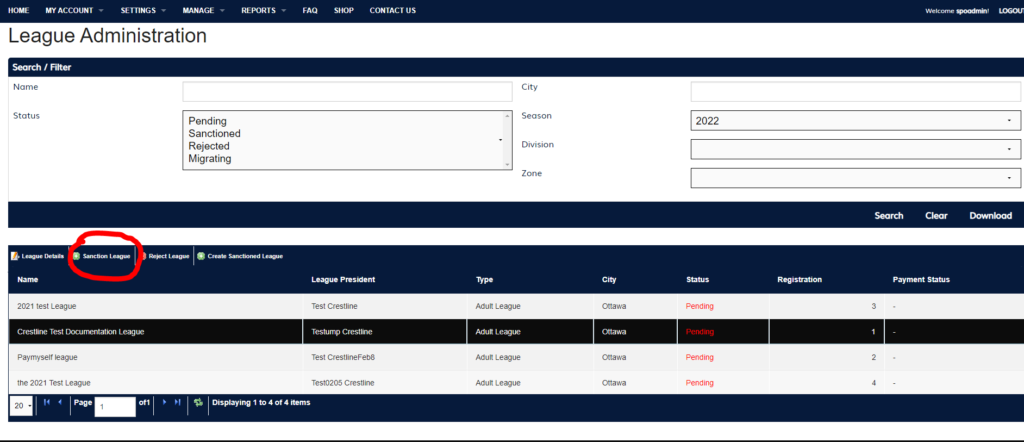
This process will change the League Status to “Sanctioned” and send an email to the league President to confirm that the league has now been sanctioned. Note: This process only changes the league status and has no other function.
3.2 Edit / Manage Leagues
The SPO administration account has full access to edit and manage any league in the system in the same way a League President can. There are no limitations.
3.3 Create Sanctioned League
SPO Administrators also can create new Sanctioned leagues. The process to create a league is the same as the process defined in Section 2 with the exception that upon creation the league will automatically be given the status of Sanctioned.
4. League Rollover (System)
When a Season ends, all leagues that were sanctioned for the current season go through what we call a roll-over. This process records and saved the data from the current season and sets up the league data so it can used again for the upcoming season. This process includes:
- Saves the previous league season data (snapshot) and teams for future lookup (read only).
- Creates a new copy of the league with all the previous seasons details including divisions and teams in the new season.
- Changes the status of the league from Sanctioned to Migrating.
- Resets the League Fees option so they will have to pay it again for the current season.
- Removes the “Adult Insured role” from all league teams. (Removes the registered checkmark)
5. League Migration (End Users)
5.1 Migrate League to new Season
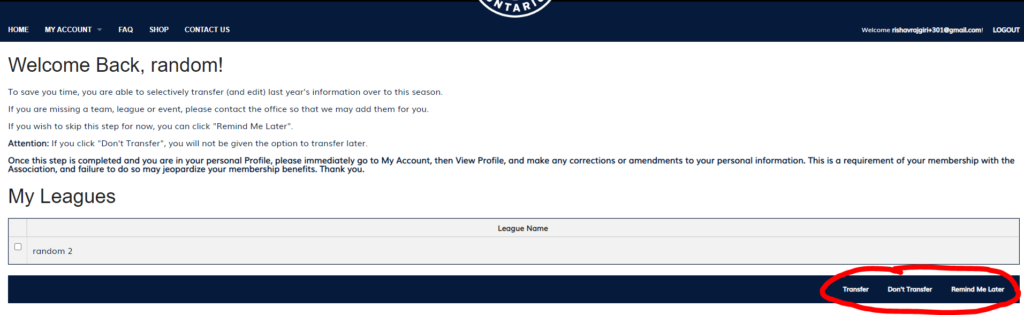
If a league was Sanctioned in a previous season and the Season roll over happens when the League President logs in again for the first time in the new season, after they renew their personal membership with SPO they will get an on-screen notification to see if they would like to Migrate their league across to the new Season.
There will be 3 options that they can select:
- Transfer – Brings the league forward into the new Season and sets the Status to Pending.
- Don’t Transfer – League is not brought into the current season. Note: if they choose this option and then decide they want to run the league again, they will have to re-enter all the league data and teams.
- Remind Me Later – This leaves the League in Migrating status and this option will be presented to the League President when they log in next time
5.2 Complete the New Season Registration
After the League has been Migrated to the new season the remainder of the process is the same as the Create new league process starting at 2.1.12 Submit payment with the exception that all the teams from the previous year have already been added t